HOW-TO • PIXEL PRESS
How to boost FPS on a low-end PC without buying anything
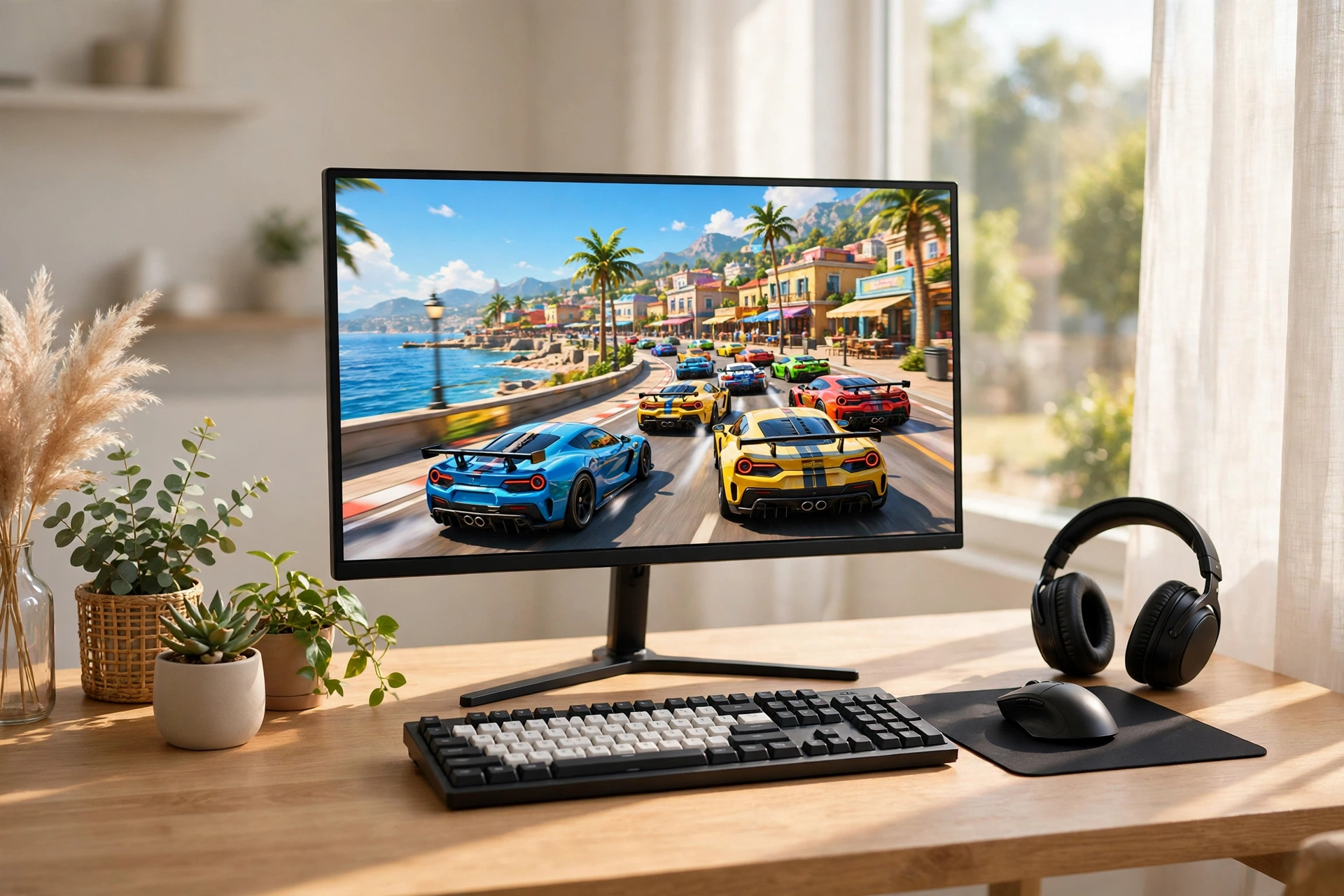
Lower shadows first, cap your frame rate, close background apps, and update your drivers. In most cases these four steps give the biggest free gain.
Start with shadows and effects, not resolution. Those settings cost the most performance for the least visible gain.
Cap your frame rate just below your screen's refresh rate for smoother, steadier play.
Close browsers and launchers running in the background, then restart the game and test again.
Start with a baseline, not a guess
Before you change anything, find out what your PC is actually doing. Play your usual game for ten minutes and notice when the slowdowns happen: at the start of a match, in busy areas, during explosions, or all the time. That pattern tells you more than any single number. If the game stutters when many characters appear, your processor or memory may be the bottleneck. If it struggles when you turn the camera quickly or look across a detailed landscape, your graphics settings are probably doing too much work. Write down your current settings and your rough experience — smooth, mostly smooth with dips, or constantly choppy — so you can tell whether each change actually helps. Changing five settings at once and hoping for the best makes it impossible to know what worked, and it often leaves you with a game that looks worse without running any better.
It also helps to test one game at a time. A setting that helps a fast competitive shooter may do little for a large open-world game, because the two games stress your PC in different ways. Pick the game you play most, tune it first, and only then carry the lessons over to others. Keep a simple note of what you changed: shadows to low, effects to medium, frame cap set, background apps closed. That note saves you from repeating the same experiments after an update resets your options, which happens more often than most players expect.
The settings that matter most, in order
Shadows are almost always the first setting to lower. They are expensive to calculate and, on a low-end PC, they often cost far more performance than they add to the picture. Set shadows to low or off, then check whether the game still looks clear enough to play well. Next, lower particle effects, reflections, and post-processing effects such as bloom and motion blur. These are pretty in screenshots but rarely help you aim, read the map, or react quickly. Keep textures at a level your graphics card can handle comfortably; very high textures on limited video memory can cause stuttering that feels worse than a slightly softer image. Resolution is powerful but blunt: dropping it a little can help a lot, yet it also makes text and distant enemies harder to see, so treat it as a later step, not the first one.
Free up your PC before you play
A low-end PC often struggles not because the game is too demanding, but because several other programs are quietly using the same processor, memory, and disk. Before a session, close your browser, especially if it has many tabs or videos open, and close launchers and chat apps you do not need while playing. Check your startup programs too: many apps set themselves to launch with Windows and then sit in the background all day. You do not need to uninstall them, just stop the ones you never use from starting automatically. Restarting your PC before a long session is a simple, free way to clear temporary slowdowns, and it costs nothing but a minute of waiting.
Drivers are the other free fix people skip. Graphics drivers from your card maker can improve performance and fix stuttering in newer games, so check for updates through the official driver tool rather than a random download site. The same applies to the game itself: updates often include performance fixes, so play on the latest version before judging a game as too slow. If you are shopping for future upgrades on a tight budget, our budget setup guide explains how to prioritise the parts that matter most, and our gaming mouse guide covers a cheaper upgrade that can improve control without touching your graphics card. Players who also game on a phone may find our phone battery tips useful for keeping a second device ready when the PC is busy.
Windows and storage habits that help
Keep your game on your fastest drive if you have a choice, and leave some free space on that drive so the system is not constantly struggling to manage files. A nearly full drive can slow loading and cause hitching when a game streams new areas. Turn on your PC power plan for high performance while plugged in, and check that your laptop is actually plugged in and not quietly running on a power-saving mode during play — that single mistake explains many mysterious slowdowns on laptops. Close recording software unless you are actively capturing a clip, and pause downloads and updates while you play, since a background download can steal both disk and network performance at the worst moment.
Finally, be realistic about what free tweaks can do. They can turn a choppy game into a playable one and a playable game into a smooth one, but they cannot make an old machine run a demanding new title at its highest settings. That is not failure; it is the trade that makes PC gaming flexible. A game at medium settings with steady motion usually plays better than the same game at ultra settings with constant dips. If you want a full plan for choosing games, settings, and habits together, our ultimate beginner gaming guide brings these ideas together in one place. For finding games that suit modest hardware, browse the free and low-cost options on Epic Games free games and Steam, where store pages list system requirements before you download.
Your free FPS checklist
- Note your current settings and when slowdowns happen, then change one setting at a time.
- Lower shadows first, then effects, reflections, and post-processing, before touching resolution.
- Cap your frame rate for steadier motion instead of chasing an unstable maximum.
- Close browsers, launchers, and recording tools before playing, and restart the PC if it has been running all day.
- Update graphics drivers and the game itself through official sources, and pause downloads while you play.
- Keep the game drive with free space available, use high performance power while plugged in, and re-test after each change.
FPS FAQ
Should I lower resolution first?
Usually not. Shadows and effects often give a bigger gain with less damage to clarity. Try those first, and only lower resolution if the game still struggles after the other steps.
Does closing my browser really help?
Yes, especially with many tabs, videos, or chat apps open. Browsers can use a surprising amount of memory and processor time, and freeing that up often makes a noticeable difference on a low-end PC.
Will a frame cap make my game look worse?
A sensible cap usually makes motion feel steadier, because it removes the jumps between very high and very low frame rates. Set it near your screen refresh rate and adjust if the game still feels uneven.
When is it time to upgrade instead of tweaking?
When you have tried the steps above, the game meets its minimum requirements on paper, and it still cannot hold a playable, steady frame rate at low settings, an upgrade — starting with the guidance in our budget setup post — is worth considering rather than endless tweaking.
All text on this post was written for Pixel Press. No content was copied from another site.